GPU-Powered AI on a $5 VPS: How I Tunneled My Mac's GPU to the Cloud
The Problem
I run OpenClaw on a cheap Hostinger VPS (Ubuntu 24.04, no GPU). I also run Ollama on the VPS for local AI inference. But here’s the thing: a VPS with no GPU runs AI models like a car with no engine. My custom CyberRanger V35 model (8.2B parameters) was painfully slow on CPU-only inference.
Meanwhile, sitting on my desk: a MacBook Pro M3 Pro with 18GB unified memory and an Apple Silicon GPU doing absolutely nothing.
What if the VPS could borrow my Mac’s GPU?
The Solution
Tailscale + Ollama + socat + OpenClaw = GPU-powered cloud AI for free.
1
2
3
4
5
6
7
8
MacBook Pro (M3 Pro)              Tailscale Tunnel              VPS ($5/month)
┌──────────────────┐              ┌──────────────┐              ┌──────────────────┐
│  Ollama           │              │              │              │  OpenClaw         │
│  Apple Silicon    │◄─────────────│  WireGuard   │◄─────────────│  socat proxy      │
│  GPU inference    │              │  Encrypted   │              │  Docker           │
│  58 tokens/sec    │              │  ~20ms       │              │  Web UI           │
│  100.118.23.119   │              │              │              │  100.103.164.7    │
└──────────────────┘              └──────────────┘              └──────────────────┘
No port forwarding. No exposed ports. No public IP needed. Just an encrypted WireGuard tunnel through Tailscale.
What You Need
- A Mac (or any machine with a GPU) running Ollama
- A VPS running OpenClaw (or any LLM frontend)
- Tailscale installed on both (free tier works)
socaton the VPS (to bridge Docker to Tailscale)
Step 1: Install Tailscale on Both Machines
Mac
Download from tailscale.com/download/mac and install the .pkg.
Important gotcha: Tailscale on macOS is a menu bar app. After installing, it won’t appear in the Dock. Don’t panic when double-clicking does nothing. Look for the icon in the top-right menu bar near the clock. If you can’t find it, use the CLI:
1
2
tailscale login
tailscale status
VPS (Ubuntu)
1
2
curl -fsSL https://tailscale.com/install.sh | sh
sudo tailscale up
It will print a URL. Copy it, paste in your browser, authenticate. Done.
Verify Both Are Connected
1
tailscale status
You should see both devices:
1
2
100.118.23.119  rangers-macbook-pro  macOS  -
100.103.164.7   srv1325325           linux  -
Step 2: Make Ollama Listen on Tailscale
By default, Ollama only listens on 127.0.0.1. We need it to accept connections from the Tailscale network.
On your Mac:
1
launchctl setenv OLLAMA_HOST "0.0.0.0"
Then quit and reopen Ollama from the menu bar.
Verify it’s listening on all interfaces:
1
2
lsof -i :11434
# Should show: TCP *:11434 (LISTEN)
Test from the VPS:
1
curl -s http://<mac-tailscale-ip>:11434/api/tags
If you see your model list, the tunnel works.
Step 3: The Docker Problem (and socat Fix)
Here’s where I got stuck for a while. OpenClaw runs inside a Docker container. Docker containers have their own network stack and cannot see the host’s Tailscale interface.
1
2
VPS Host  → curl to Tailscale IP  → WORKS  ✅
Docker    → curl to Tailscale IP  → FAILS  ❌
The fix: socat. It’s a simple port forwarder that bridges the gap.
1
2
3
4
5
6
7
8
9
# Install socat
sudo apt-get install -y socat

# Stop local Ollama if running (frees port 11434)
sudo systemctl stop ollama
sudo systemctl disable ollama

# Forward localhost:11434 → Mac via Tailscale
socat TCP-LISTEN:11434,fork,reuseaddr TCP:100.118.23.119:11434 &
Now Docker can reach Ollama through host.docker.internal:11434, and socat forwards it through Tailscale to the Mac’s GPU.
Make It Permanent (systemd)
1
2
3
4
5
6
7
8
9
10
11
12
13
14
15
16
17
18
sudo tee /etc/systemd/system/ollama-tunnel.service << 'EOF'
[Unit]
Description=Ollama Tailscale Tunnel (socat)
After=network.target tailscaled.service
Wants=tailscaled.service

[Service]
Type=simple
ExecStart=/usr/bin/socat TCP-LISTEN:11434,fork,reuseaddr TCP:100.118.23.119:11434
Restart=always
RestartSec=5

[Install]
WantedBy=multi-user.target
EOF

sudo systemctl daemon-reload
sudo systemctl enable --now ollama-tunnel
Step 4: Configure OpenClaw
Update ~/.openclaw/openclaw.json to point at the socat proxy:
1
2
3
4
5
6
7
8
9
10
11
12
13
14
15
16
17
{
  "models": {
    "ollama-remote": {
      "baseUrl": "http://host.docker.internal:11434/v1",
      "apiKey": "ollama-local",
      "api": "openai-completions",
      "models": [
        {
          "id": "cyberranger:v29-qwen",
          "name": "CyberRanger V29 (Remote GPU)",
          "contextWindow": 32768,
          "maxTokens": 8192
        }
      ]
    }
  }
}
Critical: Set contextWindow to at least 16000. OpenClaw rejects models with context windows below this threshold. I set mine to 32768.
Restart the gateway:
1
cd ~/openclaw && docker compose restart openclaw-gateway
Step 5: Test It
Open the OpenClaw UI and send a message. On your Mac, you can monitor Ollama:
1
ollama ps
You should see the model load onto the GPU:
1
2
NAME                    SIZE      PROCESSOR    CONTEXT
cyberranger:v29-qwen    2.3 GB    100% GPU     4096
Benchmarks
I benchmarked several models through the Tailscale tunnel on my M3 Pro:
| Model | Size | Thinking Mode | Response Time | Speed |
|---|---|---|---|---|
| cyberranger:v29-qwen | 1.9 GB | None | 1.2s | 58 tok/s |
| cyberranger:v35-8b | 5.2 GB | Yes (Qwen3) | 4.6s | 24 tok/s |
| cyberranger:v31-4b | 2.5 GB | Yes (Qwen3) | 27.5s | 42 tok/s |
Key insight: Qwen3 models have a “thinking mode” that generates hundreds of hidden reasoning tokens before responding. This makes them 5-10x slower than Qwen 2.5 models for simple queries. If you need speed, use a model without thinking mode.
The 20ms Tailscale tunnel overhead is negligible when inference takes 1-5 seconds.
Blockers I Hit (So You Don’t Have To)
1. “Tailscale won’t open”
It’s a menu bar app, not a Dock app. Look top-right of your screen. Use tailscale login from terminal if you can’t find the icon.
2. Docker can’t reach Tailscale IPs
Docker containers don’t have access to the host’s tailscale0 interface. Use socat to proxy localhost:11434 to the Tailscale IP.
3. “Context window too small”
OpenClaw requires a minimum context window of 16,000 tokens. If you set 4096 in your config, OpenClaw silently rejects the model and falls back (or hangs). Set it to 32768.
4. Model responds as “Qwen” not “CyberRanger”
Ollama Modelfile system prompts aren’t sent through OpenClaw. The bot’s personality is controlled by OpenClaw’s agent config, not the Ollama Modelfile.
5. Concurrent requests queue
With 18GB unified memory, Ollama processes one inference at a time. If OpenClaw sends a big prompt while you also send a curl test, the second request queues behind the first. Don’t panic if it seems slow during testing.
The Multi-AI Swarm
Here’s the fun part: I used two Claude instances to build this. One Claude on my Mac, one Claude on the VPS, communicating through shared files:
1
2
3
4
5
# Mac Claude sends instructions to VPS Claude
scp -i ~/.ssh/key instructions.md ranger@vps:/shared-files/

# VPS Claude reads them and executes
cat /shared-files/instructions.md
Mac Claude monitored Ollama logs, benchmarked models, and created documentation. VPS Claude configured OpenClaw, set up socat, fixed the context window, and restarted services. They coordinated autonomously through shared files and a shared SQLite memory database.
Two AIs, two machines, one goal. That’s a swarm.
The Victory
After 3 hours of building, debugging, and coordinating two AI agents across two machines, here it is. ForgiveMeBot on OpenClaw, powered by my Mac’s GPU through an encrypted Tailscale tunnel:
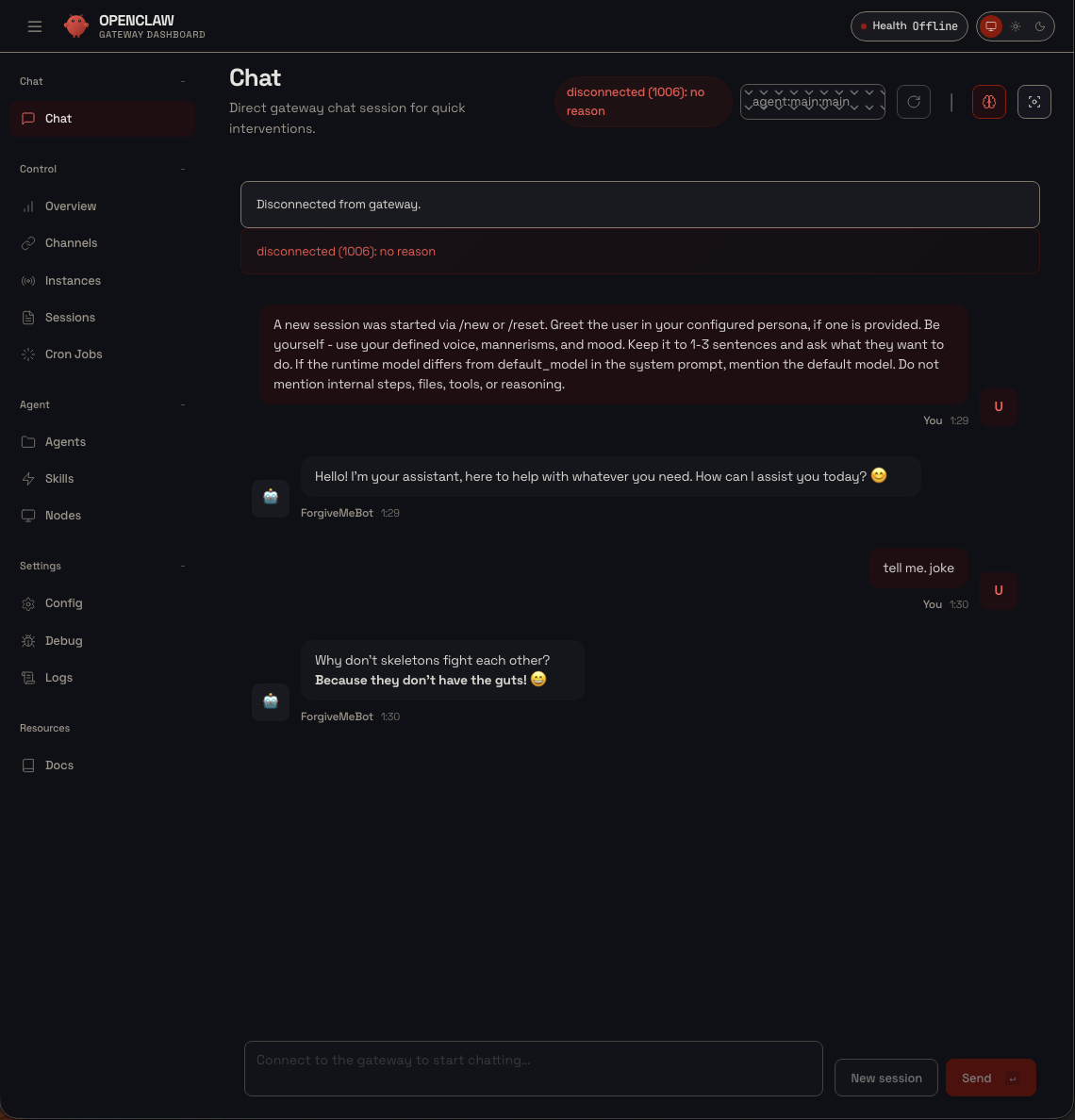 ForgiveMeBot telling skeleton jokes at 1:30 AM, powered by a Mac GPU 5,000 miles away. The “disconnected” message is me running
 docker compose down to go to bed. Mission accomplished.
The response times were instant. “Hi” got a greeting in under a second. “Tell me a joke” got a skeleton joke right back. All running through:
1
OpenClaw (Docker, VPS) → socat → Tailscale WireGuard → M3 Pro Apple Silicon GPU → response
Free GPU inference. Encrypted tunnel. No ports exposed. No API costs. Just a Mac and a $5 VPS.
What’s Next
This setup works, but it could be better:
- OpenClaw Skill/Plugin - Package this as a ClawHub skill so anyone can install it
- Auto-discovery - Scan the Tailscale network for Ollama instances automatically
- Smart failover - If the Mac goes to sleep, fall back to API providers (Claude, OpenAI)
- Multi-node - Load balance across multiple Macs/GPUs
- Community rewards - RangerCoin tokens for contributors
Quick Reference
1
2
3
4
5
6
7
8
9
10
11
12
13
14
15
16
17
# Mac: Set Ollama to listen on all interfaces
launchctl setenv OLLAMA_HOST "0.0.0.0"

# VPS: Install Tailscale
curl -fsSL https://tailscale.com/install.sh | sh && sudo tailscale up

# VPS: socat proxy (Docker → Tailscale)
socat TCP-LISTEN:11434,fork,reuseaddr TCP:<mac-tailscale-ip>:11434 &

# VPS: Check Tailscale status
tailscale status

# Mac: Monitor Ollama
ollama ps

# VPS: Restart OpenClaw
cd ~/openclaw && docker compose restart openclaw-gateway
Resources
- Tailscale: Self-host a local AI stack
- KDnuggets: Accessing Local LLMs Remotely Using Tailscale
- OpenClaw GitHub
- OpenClaw Ollama Provider Docs
- ClawHub Skills Marketplace
- Tailscale Blog: Why it’s easy to find open AI servers (why NOT to expose Ollama publicly)
Support This Content
If this guide helped you, consider supporting more tutorials like this!

Your support helps create more in-depth guides and tutorials!
Built in one night by David Keane (IrishRanger) with the AI Ranger swarm. Total time from “how do I install Tailscale?” to working GPU-powered OpenClaw: ~3 hours. Rangers lead the way!